
Most people think of their iPhone’s screen as the whole point of the device. But if you use VoiceOver, the screen reader built into every iPhone, you may not need it lit up at all – and there are good reasons to keep it dark. A hidden VoiceOver feature called Screen Curtain turns the display off completely while your iPhone keeps working as normal, so nobody nearby can glance at your messages, banking app, or anything else you’re doing.
It’s a privacy tool first and foremost, but it can also save a little battery. Here’s how to switch on VoiceOver, and then how to use Screen Curtain from within it. If you’re new to VoiceOver, our beginner’s guide to VoiceOver covers the basics in more depth.
What exactly is VoiceOver?
VoiceOver reads aloud whatever you touch on screen, from text and buttons to notifications. Any phone activity is also announced, such as incoming messages, or the fact that your screen has automatically dimmed.
Note that VoiceOver fundamentally changes how you use your iPhone. Once it’s on, you tap once to select something and double-tap to activate it, and you swipe with three fingers to scroll. To go home on an iPhone without a Home button, slide one finger up from the bottom edge until you feel a vibration, then lift.

How to turn on VoiceOver
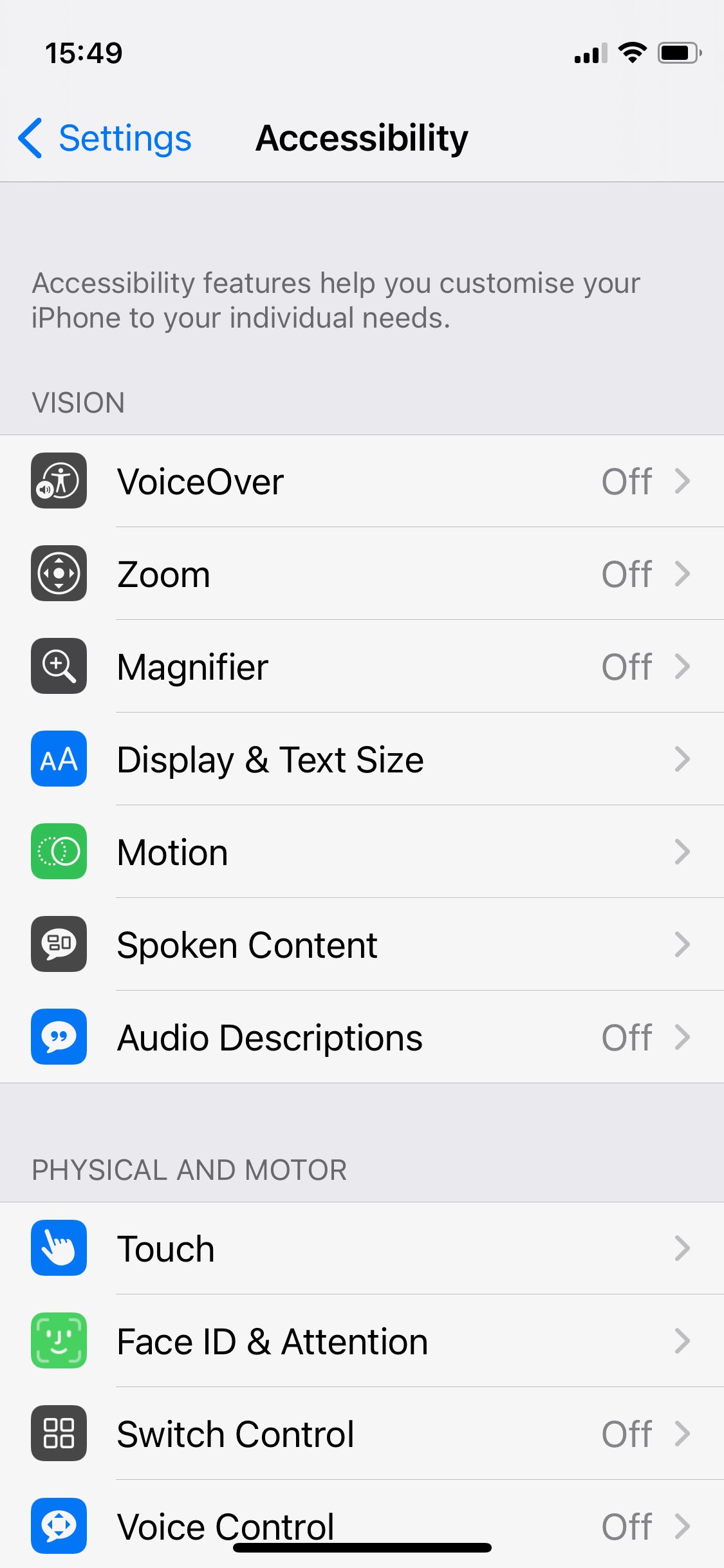
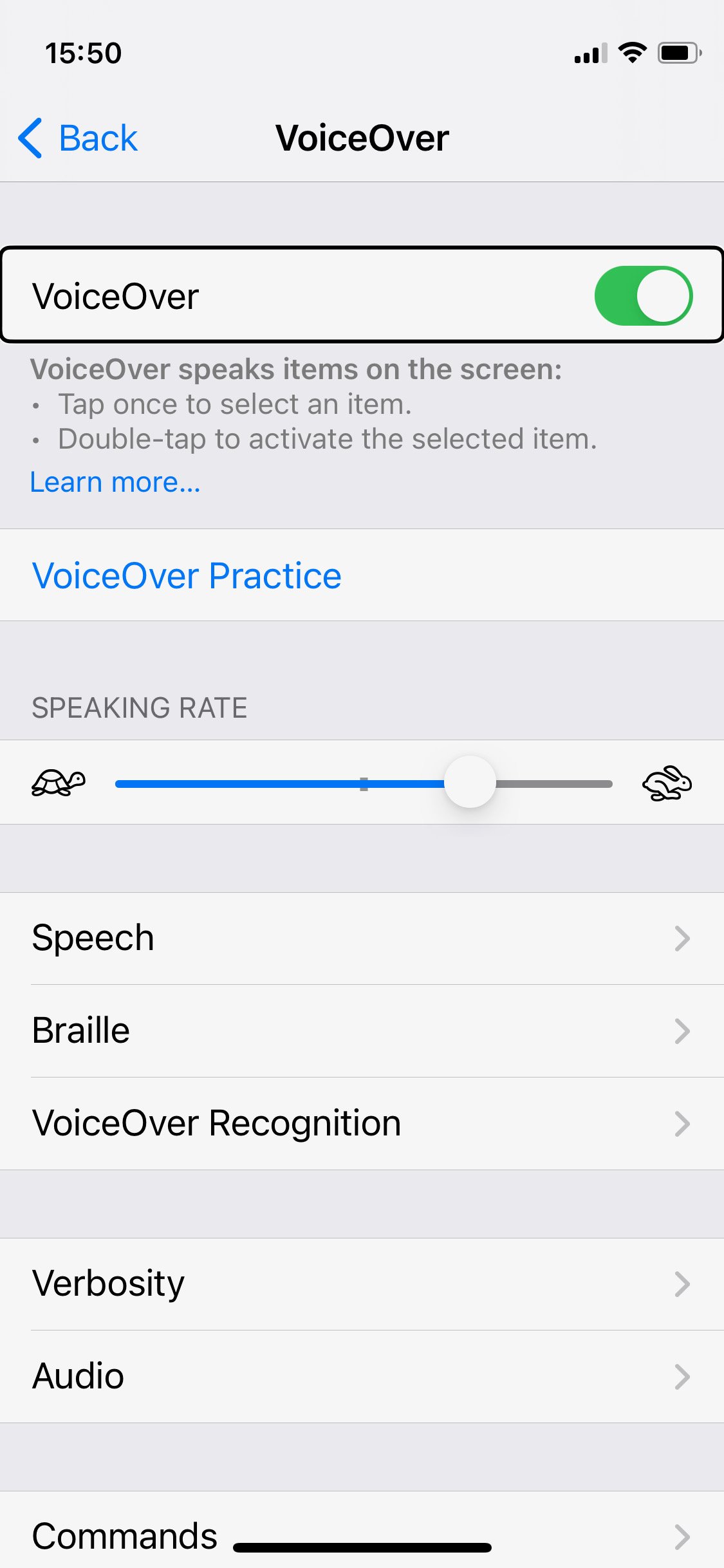
Head to Settings > Accessibility > VoiceOver and tap the toggle to switch it on. You’ll see a pop-up warning about the change to how gestures work – double-tap OK to confirm.
Below the toggle you’ll find a slider for changing the speaking rate, plus controls for the speech voice, Braille options, image and app descriptions, and more.
There are quicker ways to switch VoiceOver on and off, too. You can ask Siri to “turn on VoiceOver”, or add it to your Accessibility Shortcut (at the bottom of Settings > Accessibility) so that triple-clicking the side button toggles it instantly.
How to turn on Screen Curtain
With VoiceOver switched on, wake your iPhone and tap the screen three times quickly with three fingers. If you also use Zoom (the screen magnification feature in Accessibility settings), the gesture is a three-finger quadruple tap instead.
The screen will go dark, just as it does when your iPhone sleeps, but it will keep responding to touches and VoiceOver will keep talking. Repeat the same gesture to bring the display back. Goodbye, prying eyes!