
Safari keeps a log of every website you’ve visited, and you can scroll back through it in its History list, delete items with a left swipe, and search it to rediscover a page. Safari’s look has changed a lot in the last couple of years, but its history tools have barely moved on – it’s still one long chronological list.
That’s a waste, considering how much useful and interesting data is tied to your browsing history. Surfed sets out to fix that. It started life as a Safari extension that logs your browsing in far more detail, with powerful search, statistics and self-updating collections. It has since grown into a full browser in its own right, with Spaces for separating work and personal browsing, split view, notes and Read Later queues – but the Safari extension is still the easiest way in, because it works quietly alongside the browser you already use.
Used well, it can be more convenient than standard bookmarks or favorites for keeping track of important sites. Here’s how it works.
Installing Surfed
First, download Surfed from the App Store. It’s free, with optional Pro features available for $0.99 a month, $7.49 a year or a one-off $17.99.
Next, you need to turn on the Safari extension. The most reliable way is through Settings: open Settings, go to Apps > Safari > Extensions, tap Surfed and turn on Allow Extension. Leave Allow in Private Browsing off unless you specifically want your private sessions logged too.
You can also manage extensions from inside Safari: tap the page menu button on the left of the address bar and choose Manage Extensions, then toggle Surfed on. Once it’s enabled, Surfed appears in that same menu for quick access. Tap it and grant it permission to run on the websites you visit. (Don’t worry, Surfed stores your browsing data on your device and collects no analytics. We checked.)
Head back to the Surfed app and work through the brief introduction. That’s it for setup, but note that Surfed doesn’t get access to your existing Safari history. Instead, it starts recording its own log from the moment you switch it on, so it takes a few days before you really see the benefits – there’s not much to dig into on day one. Once it’s been running for a while, though, it comes into its own.
Dive into the data
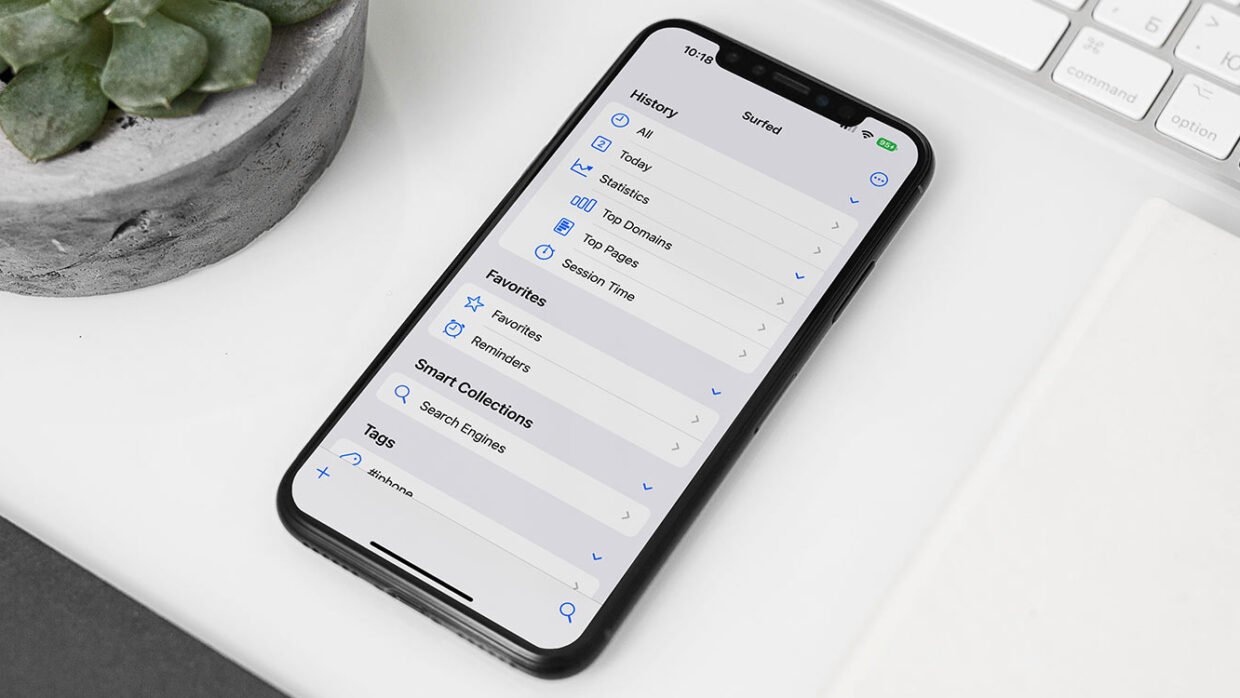
Explore Surfed and you’ll see there are a bunch of different ways to interact with your history.
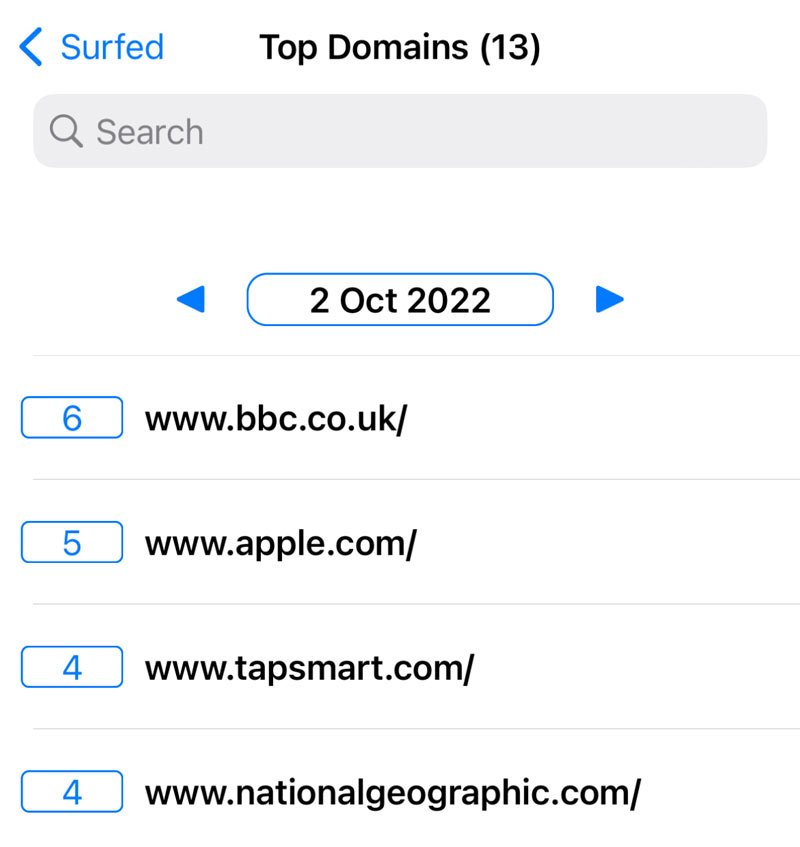
For starters, the Statistics section offers three really interesting insights into your browsing behavior. Top Domains shows you the websites you visit most often, while Top Pages is the same for individual web pages.
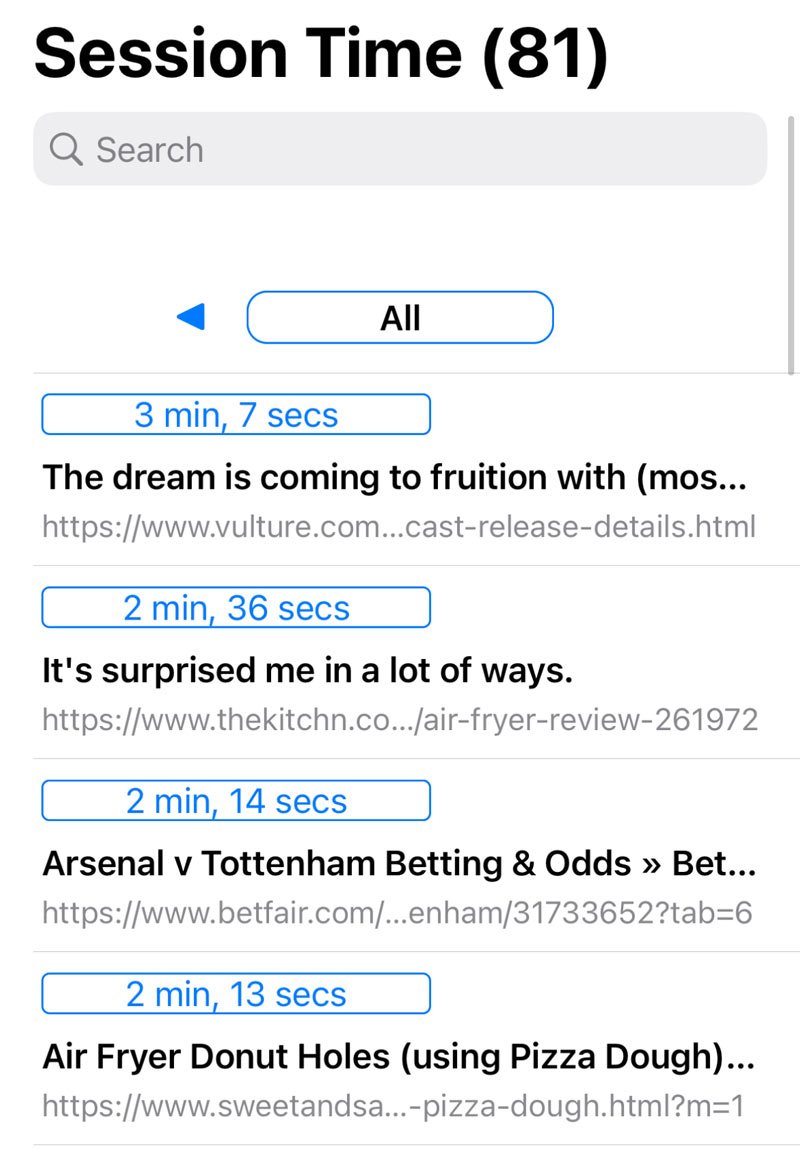
Session Time sorts every web page you’ve visited by the amount of time you spent there. You can look across all your browsing history or skip through to specific days.
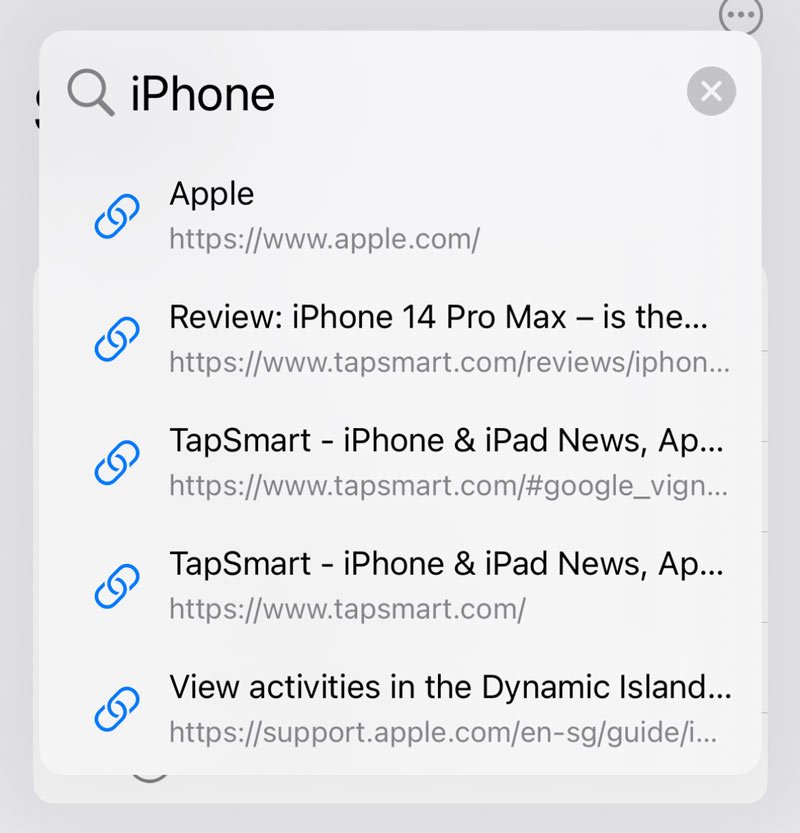
This stuff is interesting to browse, but more importantly, it helps you rediscover sites you may have forgotten. Tap any web page in the app to open it, or swipe for more detail about your visits. And if you’re looking for something specific, Surfed’s search goes well beyond Safari’s – it can match titles, addresses, tags and notes, and you can type # followed by a tag name to jump straight to tagged pages. If you tag sites as you go, sorting and finding things gets even easier.
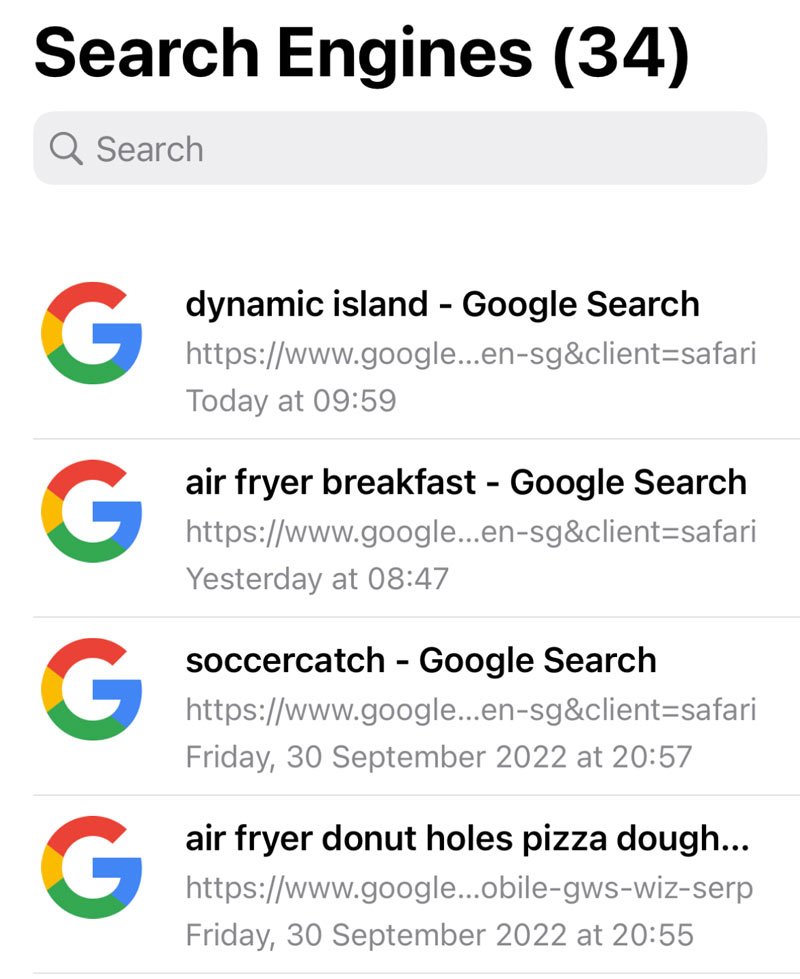
You can also create smart collections to group together history for things like shopping websites, news articles or social media. These are saved searches that update themselves as you browse, based on criteria you choose – title, address, tags, date and more – so you can, for example, browse work-related history without it getting mixed up with everything you’ve looked at in your own time. If you want a firmer split, Spaces let you keep separate areas for work, study or a particular project, each with its own notes.
With a little creativity, this can be a really helpful way to keep track of web pages without having to manually favorite or bookmark too many things. Try making a smart collection of search engines for a reminder of all the strange things you’ve been searching for recently.
If this brief intro to Surfed has you convinced, it’s worth exploring the rest of the app too – Read Later and Listen Later queues, notes on individual pages and Shortcuts actions all build on the same history, and you can even use Surfed as your main browser if you like how it works.