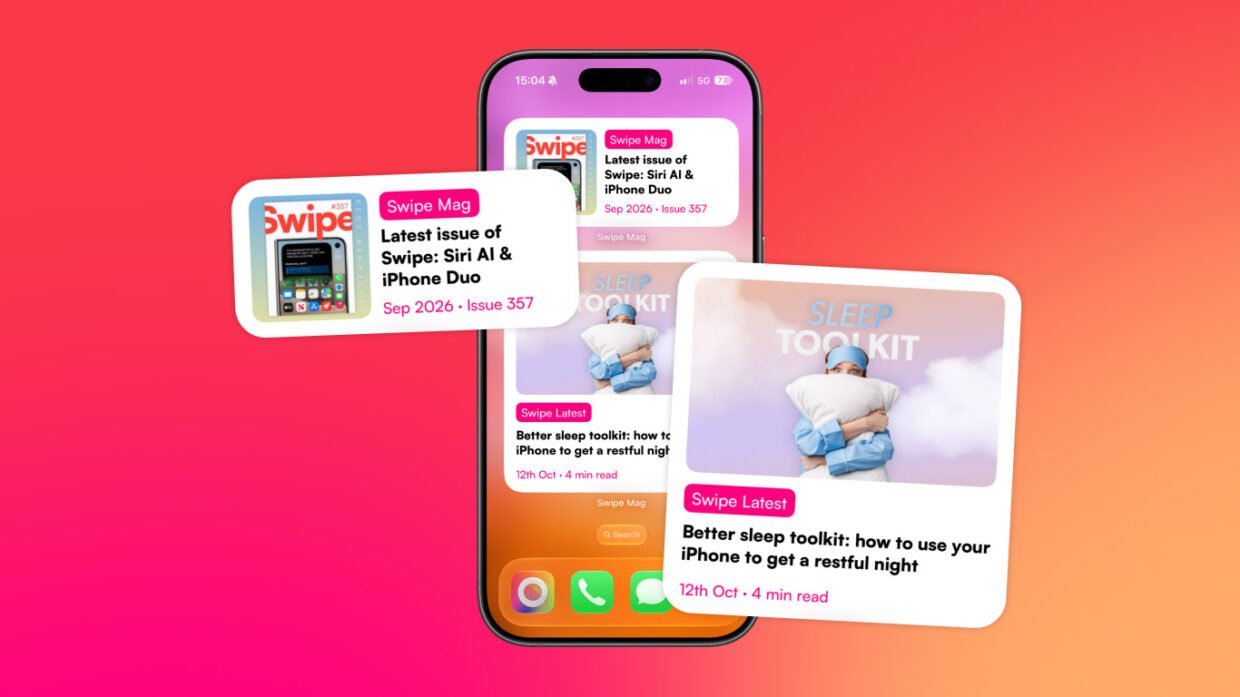
Swipe has two Home Screen widgets, so the latest articles and issues are always a glance away.
- The Swipe Mag widget shows the latest issue when it arrives each month. It’s a great way to ensure you never miss an issue!
- The Swipe Latest widget shows a preview of the most recent Swipe article in the feed. This one updates several times a week to keep you in the know between issues.
Adding a widget
- Touch and hold an empty area of your Home Screen until the apps start to jiggle.
- Tap Edit in the top-left corner, then tap Add Widget. On older versions of iOS, tap the + button instead.
- Search for “Swipe” or scroll down to find it.
- Swipe through the previews to choose Swipe Latest or Swipe Mag, and the size you want, then tap Add Widget.
Moving and resizing
- Drag the widget to move it, just like an app icon.
- Tap Done when you’re happy with it.
- To resize it later, touch and hold the Home Screen again and drag the widget’s corner handle.
Using the widgets
Both widgets update automatically. Tap one to jump straight to that post or issue in the Swipe app.