
Streaming subscriptions keep getting more expensive, and shows you love can vanish from a service overnight. If you’ve got your own collection of films, TV and home movies, there’s a lot to be said for running your own streaming service instead – and Plex is still the easiest way to do it.
Plex turns a computer you already own into a personal media server, so you can watch everything in your library on your iPhone, iPad, Apple TV and plenty of other devices. One thing has changed since we first covered it, though: watching your own media away from home is no longer free. We’ll explain what you get without paying, and what needs a subscription.
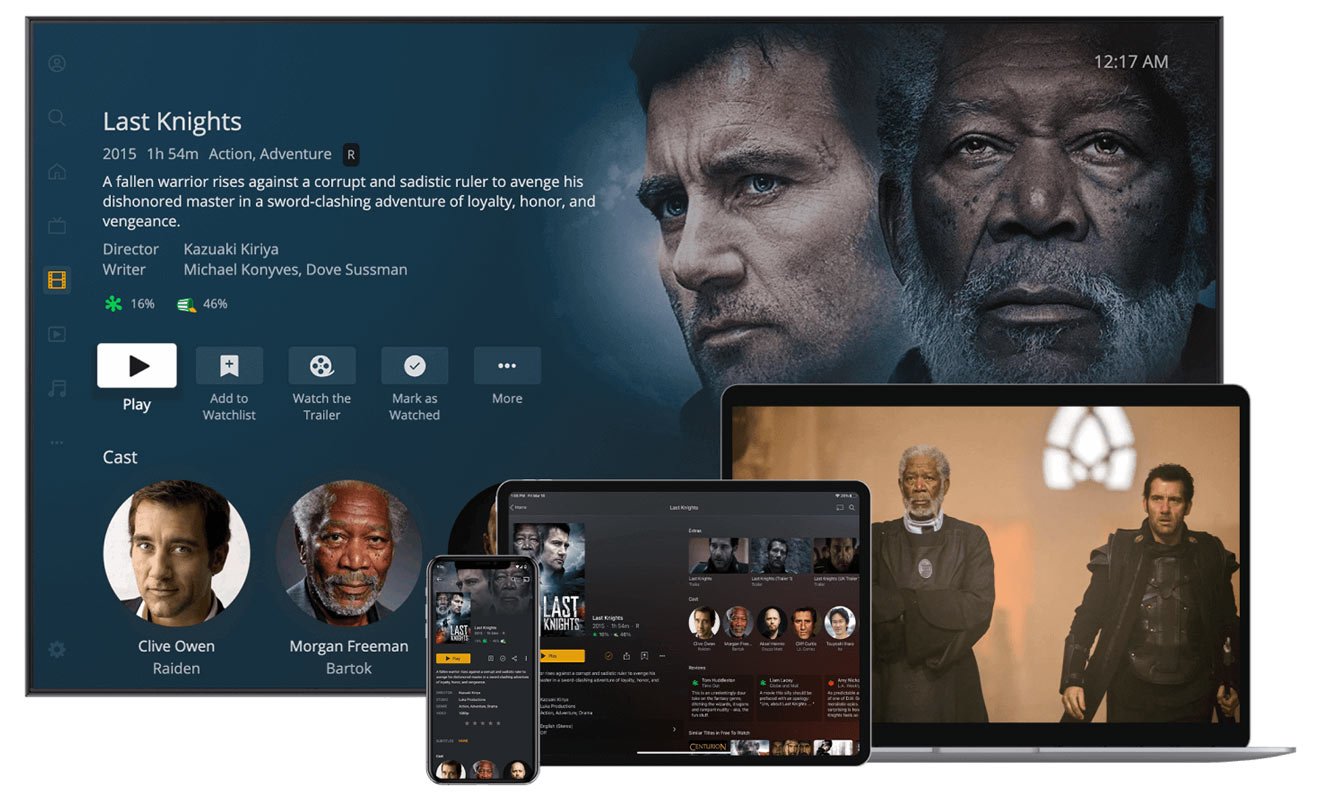
Of course, this assumes you already have a library of content and know the laws in your region on owning it. Ripping films from a DVD, recording shows with a DVR, and sharing files online are all grey areas legally, so we can’t endorse any particular method of acquiring content. But we can help you watch the collection you already have.
Set up Plex Media Server
To start, you’ll need to install Plex Media Server on the computer where you store your video files. This machine needs to be switched on and online whenever you want to watch something from it, so choose wisely. Some people use a network drive (NAS) for this, but we’ll look at setting it up on a Mac.
Download the app and open the installer. When it’s done, the server launches in the background – you’ll see its icon in the menu bar – and the Plex interface opens in your web browser. Log in or create an account, and you’ll be greeted by a Setup Wizard.
Build your libraries
Here you can create libraries for different types of content, including more than one video library if you need it. You’ll point each library at a folder, then move your media into the right folder.
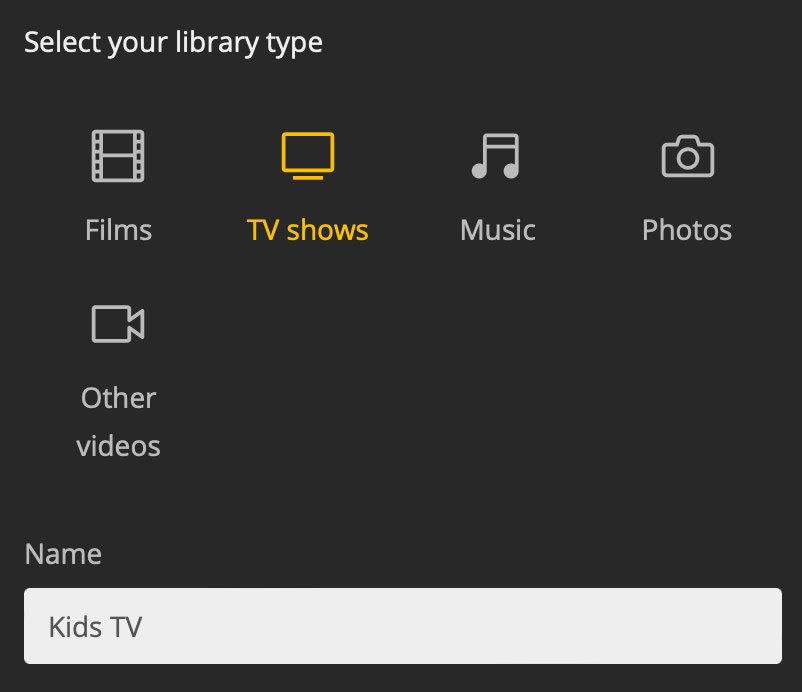
It’s good practice to keep things well organized, with separate libraries for TV, films, and home movies. Plex automatically scans these folders, matches titles against its database, and grabs artwork and details to make your library look the part. Following its file naming conventions speeds this up.
Watch on your iPhone, iPad and Apple TV
Once your libraries are set up, you can stream them from the Plex web app in a browser, or from any device with a Plex app. The Plex app is a free download from the App Store, and Plex is also available on Apple TV, many smart TVs, and devices like Roku and PlayStation.
Open the app, log in, and choose one of your libraries from the menu to see all your videos. Tap any of them to start watching.
What’s free, and what isn’t
Watching your own media on your home network is free, including on iPhone and iPad – Plex dropped the one-off fee it used to charge to unlock playback in its mobile app.
Watching remotely – on your iPhone at a friend’s house, say, or on a hotel TV – now needs a paid plan. Since April 2025, remote streaming of personal media requires either a Plex Pass, bought by whoever runs the server ($6.99 a month or $69.99 a year at the time of writing), or a Remote Watch Pass for the person watching ($1.99 a month or $19.99 a year). A Plex Pass also covers everyone you share your server with, and adds extras such as downloads for offline viewing.
If you’d rather not pay, the open-source media server Jellyfin is a free alternative, though it takes a little more effort to set up.
Note that the Plex app also includes a lot of its own streaming content and live TV, some of it free. Feel free to ignore that part of the app if your own media is all you need.
If you do pay for remote access and run into network errors while streaming from another location, the official remote access troubleshooting guide is the place to start.