
- Where Create a Pass lives
- Scanning a card vs building one manually
- Customizing your finished pass
Official Apple Wallet support has always depended on the business behind the card, with a limited list of integrated card types. iOS 27 removes that requirement. If a physical card has a barcode or QR code, you can scan it with the iPhone camera to turn it into a Wallet pass yourself. That means easy access whenever you need it, and fewer physical items to carry around with you. Here’s how it works.
Getting started
Open Wallet, tap the + button, and choose Create a Pass. From here you’ve got two routes in: scanning a card, or building one from scratch. Basic pass creation works on any iPhone running iOS 27 – the fancier automatic version below needs a bit more.
Scanning a physical card
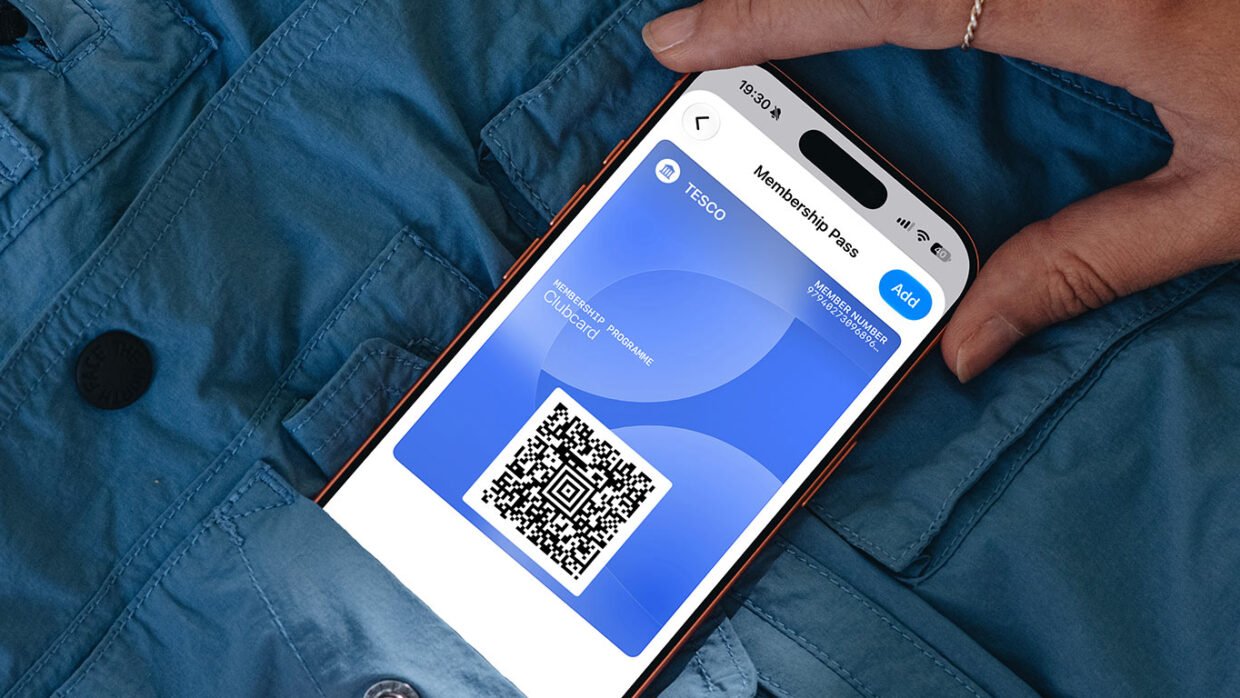
Point your camera at the card’s barcode or QR code and Wallet copies it directly onto a new digital pass – no typing required for that part. Note that it also works from an image or screenshot – hit the Photos button in the corner to grab something from your camera roll. This is handy if you already have the code digitized in an email or another app and just want to move it to Wallet.
On an iPhone 17 Pro, 17 Pro Max, or Air, Wallet goes a step further: Visual Intelligence tries to read the printed text on the card too, pre-filling the name, location, and other details for you to check over before saving. On other Apple Intelligence-capable iPhones (15 Pro and later), you get the barcode scan but not the automatic text fill-in – you’ll fill in the rest of the fields yourself.
Building one manually
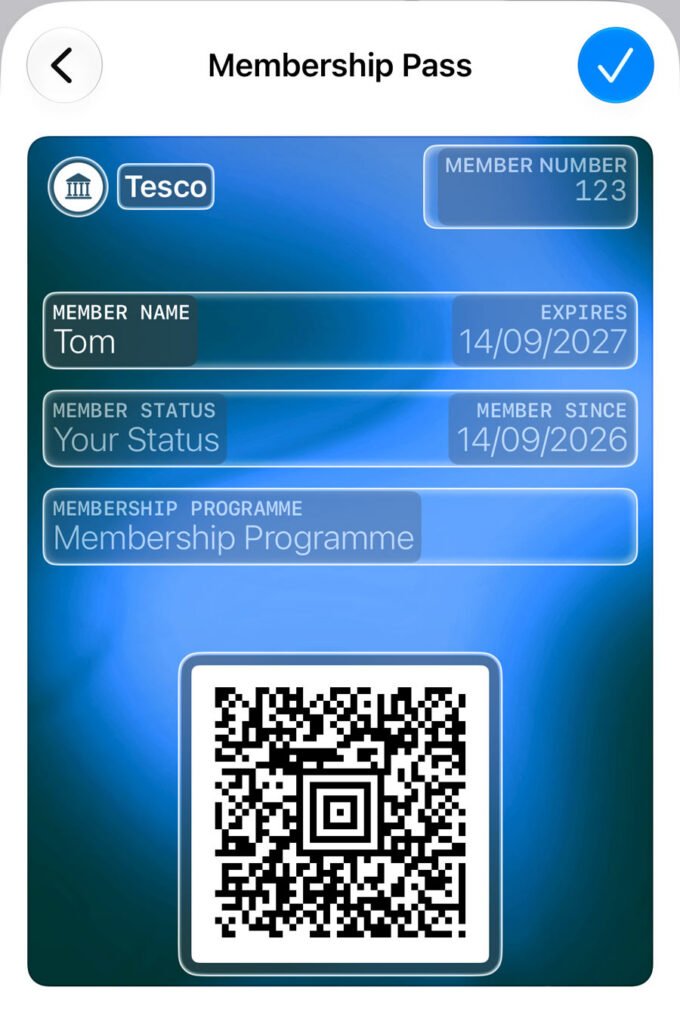
No barcode, or the scan didn’t come out clean? Pick a template instead: Standard for anything generic, Membership for gym cards and the like, or Event for tickets, with fields for seating and admission type. All three let you add or remove fields – membership numbers, expiry dates, contact details – so most physical cards can be recreated fairly accurately.
Making it your own
Every pass gets a background: 12 solid colors, or seven themed options for things like theater, music, and sports. Pick whichever makes the pass easiest to spot in a crowded Wallet.